
section 1 of 3
Get started with Everway for Work
Use this quick start to plan your rollout, build awareness, and help employees discover how Everway for Work can support them in their everyday work.
Before you begin
Make sure Everway for Work is available to your employees.
If your organization hasn't installed or deployed Everway for Work yet, share the below link with your IT, Assistive Technology or Accessibility team.
What is Everway for Work?
Everway for Work is neuroinclusive technology designed to reduce cognitive friction at work. It supports different ways of thinking, giving people with autism, ADHD, dyslexia and beyond the tools to work in the ways that work best for them. Company-wide access puts support in everyone’s hands, without relying on disclosure or individual requests.
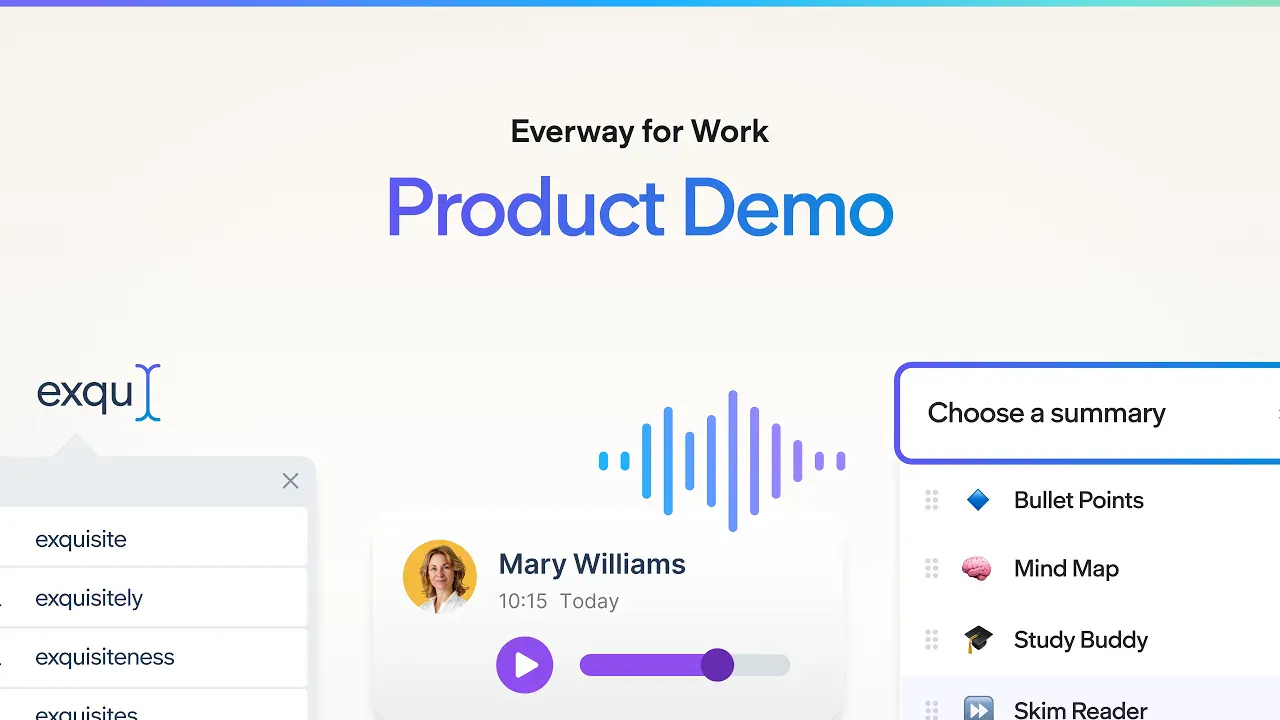
A quick look at Everway for Work
Watch this short introduction for an overview of Everway for Work, the different products it includes and how each can support employees in their everyday work.
section 2 of 3
Get ready to roll out Everway for Work
Successfully installing Everway for Work is just the beginning. Organizations that see the strongest adoption actively build awareness, encourage exploration, and help employees understand how the software can support them in their everyday work.
Follow the steps below and use the supporting resources and templates to increase engagement, encourage adoption, and get more from your investment.
1. Announce Everway for Work
Start with a clear introduction to your organization.
Send an organization-wide email explaining:
- Why your organization has invested in Everway for Work
- Who it helps and how it can support different ways of working
- How employees can get started using the product
2. Host a demo day
Give employees dedicated time to explore Everway for Work and see how it can support them in their everyday work.
Ask your IT, Assistive Technology or Accessibility team to run a demo session. They can introduce the software, show key features and answer employee questions. You can support them by helping to promote the session and encourage employees to take part.
A demo could be:
- A live in-person session
- A recorded product demo
- An online lunch-and-learn
Share these resources with the team running your demo to help them get started.
3. Build Everway for Work into employee onboarding
Include Everway for Work as part of every new starter's journey. Providing immediate, discreet access means employees don't need to request support before benefiting from the software.
Use the materials above to share information about Everway for Work, and add details on how they can access the software and who they can reach out to for support.
Provide new employees with:
- Information about Everway for Work
- Details on how they can access the software
- Information about who they can contact for support
Making the software part of onboarding helps employees discover it early and supports continued adoption.
"We realised early on that making the software part of the induction process was important. In fact, it's a key part of our success story. New recruits are introduced to it during induction events and within their personal onboarding programme. We've been noticing the benefits ever since.” - Estella Dorrian, Equality Manager, Belfast Health & Social Care Trust
4. Keep Everway for Work visible
Regular visibility can help maintain awareness and encourage continued use across your organization. One of our customers increased active users from 70 to more than 1,400 simply by running an internal awareness campaign.
Use the available materials across your workplace and digital channels.
In the office
Place these Everway for Work flyers on notice boards, in communal areas, or around meeting spaces.
Remote working
Use these Everyway for Work digital graphic cards across your online chat spaces, intranet or internal newsletters to spread the word and promote usage.
5. Host monthly drop-in sessions
Work with your IT, Assistive Technology or Accessibility team to offer regular drop-in sessions where employees and managers can ask questions, explore features and build confidence using Everway for Work.
Sessions can be held in person or online and could include:
- Feature demonstrations
- One-to-one support
- Feature updates
- Tips for getting more from Everway for Work
HR / DEI leaders and team members can help promote these sessions across the organization and encourage employees to take part.
6. Appoint change champions
Every successful rollout benefits from enthusiastic advocates. Identify employees who may like the opportunity to become a Change Champion. These colleagues can help others discover new features, answer questions and encourage adoption throughout the organization.
They don't need to be technical experts, they simply help colleagues feel confident exploring the software.
Change Champions can:
- Help colleagues discover features
- Answer questions
- Encourage adoption
Share their experience across the organization
7. Engage Employee Resource Groups
Employee Resource Groups (ERGs) can help build awareness and encourage colleagues to explore Everway for Work.
Ask your Change Champions or your IT, Assistive Technology or Accessibility team to:
- Attend ERG meetings
- Demonstrate the software
- Encourage and answer questions
- Share experiences and examples of how the software can help
“ERGs are key in the process because individuals within the ERGs will share their own experiences with tools that work well for them. Read&Write is consistently brought up in our neurodiversity community as something that may be helpful. Many people in the group will guide others to the EY app store to download the software.” - Kevin Grogg, Assistive Technologies Service Owner at Ernst & Young
8. Celebrate your success
As adoption grows, share the impact Everway for Work is having across your organization and celebrate your progress.
Work with your Marketing or Communications team to share success stories internally or externally, demonstrate the value of your rollout, and inspire others.
Share the resources below to help your team get started.
Having issues getting started?
Check the extension is installed and pinned. You should see the Read&Write icon in the top-right corner of Chrome. If it's not pinned, click the puzzle-piece icon and pin Read&Write to the toolbar.
Confirm your school account has access to Read&Write. Contact your IT administrator to check account permissions.
Contact your IT administrator to whitelist the Read&Write extension for your school's managed devices.
The available toolbar varies by licence and platform. If you're on a Free for Teachers account, some premium tools (such as Talk&Type) won't appear. Check the toolbar guide in your platform's quick reference.
Still need help?
Contact our team at Everway and we’ll be happy to support you in getting set up with Read&Write.
section 3 of 3
Troubleshooting and support
If something isn’t working as expected, help is available. Most issues can be resolved quickly with the right guidance.
Find answers quickly
Knowledge Base
Search FAQs, how-to articles, and troubleshooting guides
Common issues
If you’re getting started, you might experience:
- The toolbar not appearing
- Difficulty signing in
- Features not working as expected
These are usually resolved with simple setup checks or access permissions.
Before you contact support
Try these quick checks:
- Make sure Everway for Work is installed and pinned in your browser
- Sign out and back in again
- Confirm access with your IT department
Still need help?
If you’re still having issues, our team is here to help.