
section 1 of 6
Get to know Everway for Work
Everway for Work gives you tools to help with everyday reading, writing, communication and focus.
Everyone works differently. You might find some tools useful every day and others helpful for particular tasks.
Everway for Work can help you:
Read and understand information
Write and communicate your ideas
Focus on the information you need
Organize information and research
Work in ways that suit you
Complete tasks more independently
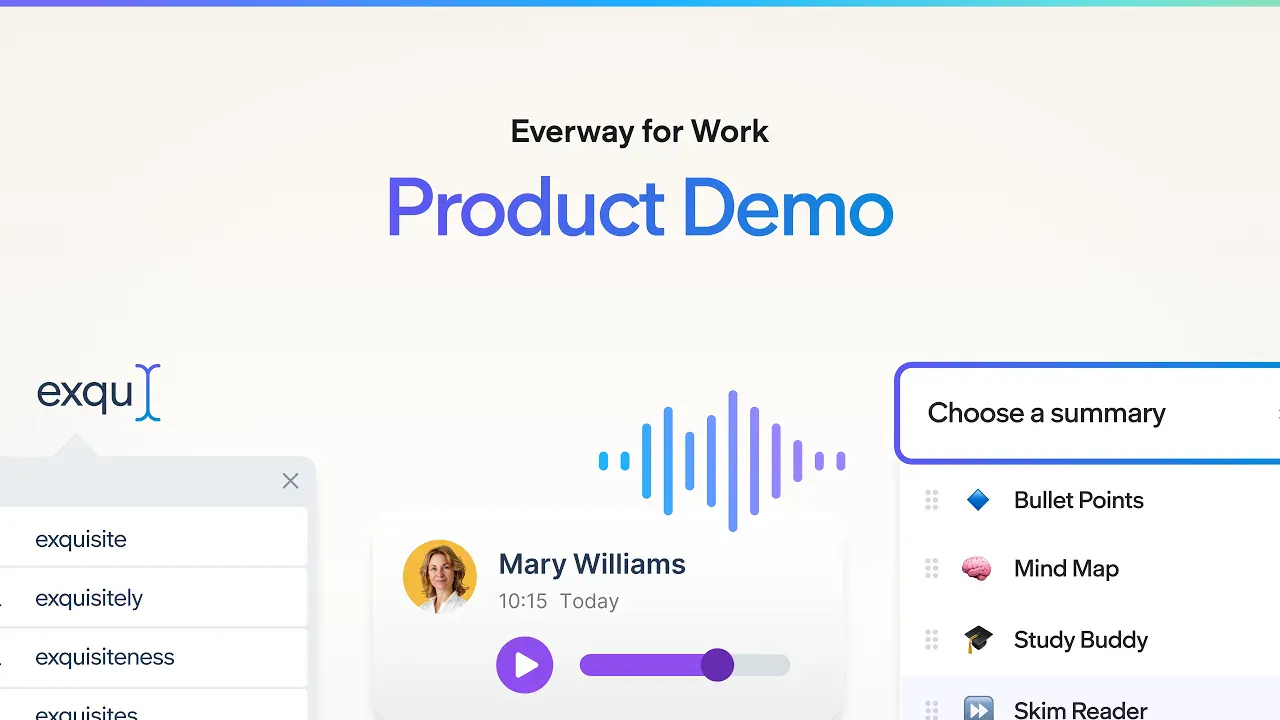
A quick look at Everway for Work
Watch this short introduction to see the tools available and how you can use them during your working day.
Do I need to request an accommodation?
If Everway for Work is available across your organization, you can use the tools that help you without needing to disclose a diagnosis or explain why you need them.
You can choose which tools you use and how you use them.
section 2 of 6
Access your tools
Your organization may have already installed and set up your Everway products.
Sign in
How you sign in will depend on your organization's setup.
You may be able to sign in using your usual work account through single sign-on (SSO).
Can't access your tools?
If you're having trouble signing in or accessing Everway for Work, contact your organization's IT or Assistive Technology team first.

section 3 of 6
Find the right tools for you
You don't need to start by learning every feature.
Think about something you'd like to make easier, then explore the tools that can help.
I want help with reading

Text-to-Speech
Text-to-Speech reads text aloud while highlighting words, helping you to follow along and better understand what you're reading.
Benefits:
- Reads text from documents, websites, and PDFs
+ 3 more

Screenshot Reader
Convert text embedded within pictures, diagrams, tables, charts, maps, graphs, etc., into accessible text that is read aloud.
Benefits:
- Increases accessibility of embedded text.
- Enables readability of advertisements, tables, charts, maps, photo captions, banners, etc.

Screen Masking
Enable a tinted window screen with a customized color that moves with your pointer and improves your eye focus.
Benefits:
- Improves focus and eye gaze
- Reduces eye strain
- Reduces visual distractions around text

Audio Maker
Convert text to an MP3 audio file that can be saved or shared for future use on any mobile audio device.
Benefits:
- Increases accessibility of read-aloud text in any environment (listen to text anytime, anywhere).
- Supports memorizing formulas, poems, speeches, etc.
I want help with writing

Prediction
Helps you to plan, write, and edit your work.
Benefits:
- Defines unfamiliar words with audio support
- Recognizes your writing style, helping to get thoughts down more quickly
+ 4 more

Talk&Type
Turn spoken words into text by dictating into a microphone.
Benefits:
- Provides an alternate format for writing tasks
- Increases ability to get thoughts on paper more easily and efficiently

Check It
Proofread written text by checking writing conventions.
Benefits:
- Supports development of sentence structure, spelling, and grammar
- Helps you to check for writing errors and view suggestions
- Provides opportunities to see repeated errors

Voice Notes
Record a quick (one minute or less) audio file and insert it into a document.
Benefits:
- Reinforces note taking skills through an alternate format
- Increases ability to provide feedback to colleagues without relying on ability to accurately read feedback/reminder notes

Refine
Refine helps you turn your thoughts into clear, well-structured messages and adjust your writing to match the tone and intent you want.
Benefits:
- Communicate more clearly: Shape your ideas into messages that are easier for others to understand
- Find the right tone: Adjust how your message comes across, helping you communicate with more confidence
I want help staying focused
Tasks
Helps you stay focused by breaking work into manageable steps, helping you choose what to work on and supporting your attention as you work through it.
Benefits:
- Focus on what matters now: Prioritise tasks and use focus sessions to concentrate on one thing at a time.
- Keep your momentum going: Use timers, ambient sounds and structured task lists to support sustained attention.
+ 2 more

Screen Masking
Helps reduce visual distractions on your screen, making it easier to focus on the information you’re reading.
Benefits:
- Reduce distractions: Adjust how content appears on screen so there’s less competing for your attention.
- Stay focused while reading: Use reading aids to concentrate on the text you’re working through.
Text-to-Speech
Reads text aloud as you work, helping you stay focused and follow written information more easily.
Benefits:
- Stay engaged while reading: Listen to text as you follow along, helping you keep your attention on the content.
- Make reading feel more manageable: Hear information instead of relying on reading from the screen alone.
I want help organizing information
Mindmap
Helps you organize ideas visually, making it easier to break down complex information and see how different ideas connect.
Benefits:
- Give your ideas structure: Arrange information in a visual format that makes sense to you.
- Turn ideas into a clear plan: Develop your mind map into structured documents, timelines or tasks when you’re ready to take action.
+ 1 more

Collect Highlights
Helps you gather important information from different sources in one place, so it’s easier to review and use later.
Benefits:
- Keep key information together: Highlight useful content as you read and collect it in one place.
- Make information easier to review: Use your collected highlights to organise ideas and support your next steps.
section 4 of 6
Use Everway for Work in your working day
Everway for Work works best when you use the tools as part of the tasks you're already doing.
Here are a few places to start:
1. Reading a long document
If you've been sent a long report, policy or briefing, you could use Text-to-Speech to listen while you follow the text on screen.
Screen Masking can help you focus on a smaller part of the page at a time.
2. Writing an email or document
If getting your thoughts onto the page is difficult, try Talk&Type to speak your first draft.
Prediction can suggest words as you type, while Check It can help you review your writing.
Refine will help you to polish documents and communications.
3. Researching a topic
Use Highlights to mark useful information as you read. Collect Highlights can bring that information together so it's easier to review and use later. Try Mindmaps to help you visualize tasks, ideas, and projects.
4. Staying focused
If a busy screen makes it harder to concentrate, try Screen Masking. You can adjust the screen to help you focus on the information you're working with.
Use Tasks to provide structure, focus, and workflow support.
section 5 of 6
Make Everway for Work work for you
There's no single right way to use Everway for Work.
Try different features and settings to find what works for you and the task you're doing.
Start small
Choose one everyday task you'd like some help with.
For example, if you spend a lot of time reading reports, start with Text-to-Speech. Use it with a real document and see whether listening makes the information easier to work through.
Once you're comfortable with one tool, try another.
Adjust your settings
Some tools let you change how they work.
Depending on the feature, you may be able to adjust things such as reading speed, voices, colours and how information appears on screen.
Try different settings and choose what feels right for you.
Explore more features
Ready to see what else you can do?
Explore our feature tours to learn how different Everway tools work and when you might use them.
section 6 of 6
Get help and support
If something isn't working as expected, there are a few places you can go for help.
Find answers quickly
Knowledge Base
Search FAQs, how-to articles, and troubleshooting guides
Having trouble with access?
If you can't sign in, can't access a product or think something is missing from your account, contact your organization's IT or Assistive Technology team.
They can check your account and the products available through your organization.
Still need help?
If you’re still having issues, our team is here to help.