
section 1 of 5
Understand Equatio
Build confidence and understand the value of Equatio before exploring the tools.
Equatio is a digital toolbar designed to make mathematics more accessible and inclusive through versatile input methods like voice, drawing, and typing.
Unlocking the potential of every learner
Designed to support a wide range of learners. Built with neuroinclusion in mind, Equatio removes barriers to mathematical expressions and helps learners engage with math in ways that work best for them.
Create math your way with digital, editable, and accessible input
Bring math and science to life with interactive, visual tools
Include everyone in your math classroom with accessibility-first tools
Empower teaching, practice, and assessment with AI-driven support
Why teachers use Equatio
Equatio allows students to speak, type, and draw math problems digitally, bringing math education wherever they go. It’s built to foster inclusivity and accessibility, facilitating math education for every learner.
- Make math digital, editable, and accessible
- Support students with disabilities
- Build confidence and engagement
- Offer flexibility and differentiation
- Create collaborative math environments
- Promote active participation and student choice
- Provide multiple means to demonstrate mastery
- Visualize complex math concepts
Want to see Equatio in action?
Try our interactive demo to see how Equatio could support your students and workflows.
section 2 of 5
Set up Equatio
Let's get you set up and ready to use Equatio in the classroom.
What you'll need
- A school or educator login
- Access to your school's OS or browser (Chrome, Windows, Mac)
- About five minutes
Get started with a few simple steps
Pick the device or browser you'll be using and follow the steps for that platform.
Install Equatio
There are three ways to install:
- Add the Equatio extension to Google Chrome from the Chrome Web Store
- Download the Equatio desktop app for Windows from the Everway product page
- Download the Equatio desktop app for macOS from the Everway product page
For Chrome | For Windows | For Mac |
|---|---|---|
Add the Equatio extension to Google Chrome from the Chrome Web Store. | Download the Equatio desktop app for Windows from the Everway product page. | Download the Equatio desktop app for macOS from the Everway product page. |
Open the extension and sign in using your school or educator account. | Open the downloaded .exe file and follow the on-screen prompts. Admin permission may be required. | Double-click the .dmg file and drag Equatio into your applications folder. |
Click the Equatio icon in your browser — the toolbar will appear on screen. | Launch Equatio from the start menu and sign in with your school or educator account. | Open System Settings → Privacy & Security → Screen & System Audio Recording. |
Pin the Equatio extension to your browser toolbar. | Right click the Equatio icon in the taskbar and pin it. | Launch Equatio from your applications and sign in with your school or educator account. |
Having issues getting started?
Check that the extension is installed and pinned. You should see the Equatio icon in the top-right corner of Chrome. If it's not pinned, click the puzzle-piece icon and pin Equatio to the toolbar.
Pro tip: Refresh your browser, and try clicking on the Equatio extension again if it doesn't open after the first attempt.
Confirm your school account has access to Equatio. Contact your IT administrator to check account permissions.
Contact your IT administrator to whitelist the Equatio extension for your school's managed devices.
Still need help?
Contact our team at Everway and we’ll be happy to support you in getting set up with Equatio.
section 3 of 5
Equatio core features
Learn the tools you'll use most in your classroom. Start with a few core tools that make the biggest impact.
Input
Create math your way with digital, editable, and accessible input
Equation Editor
Create a digital math expression by typing into the math panel to insert fractions, exponents, operators, formulas, chemical symbols, text, and more.
Benefits:
- Create vertical operations that can be solved using multi-line math
- Increase problem-solving efficiency with results shown in real time
Visualization
Bring math and science to life with interactive, visual tools
Whiteboard
Interact with a digital scratch pad containing shapes, arrows, lines, freehand annotations, text entries, and more.
Benefits:
- Increase engagement and participation in math activities
- Enhance use of digital math manipulatives
- Increase flexibility for students to show their work and understanding of math processes
Accessibility
Include everyone in your math classroom with accessibility-first tools
Equatio Mobile
Input handwritten math or images using a mobile device.
Benefits:
- Allow students to convert handwritten or textbook math images into accessible documents
- Save time as students can use their smartphone to quickly convert handwritten or textbook printed math into accessible math
Additional Support
Empower teaching, practice and assessment with AI-driven support
Mathspace
Automatically open an Equatio Mathspace that is linked with the current document you’re working on.
Benefits:
- Increase collaboration and feedback opportunities when practicing math skills
- Provide an additional environment to support teacher and student preference when using Equatio math features
section 4 of 5
Introducing Equatio to students
Start small and build confidence. Begin with a clear goal - input, visibility, accessibility, or support - and introduce one tool that directly supports that need.
A simple way to get started
- Model one tool in context
Demonstrate how it works using the same content students are already working on - Give students a quick opportunity to try it
Set a short, meaningful task so they can apply it straight away - Keep it focused
Stick to one or two tools at a time to avoid students feeling overwhelmed - Build gradually
Introduce more features over time as confidence grows
Match tools to student needs
Not every student will benefit from the same tools. Some may need support with input and accessibility, while others may need help with visibility.
section 5 of 5
Next steps and resources
Take it further with curated resources designed for educators rolling out Equatio.
Get support right when and where you need it
Equatio support built right into the toolbar menu.
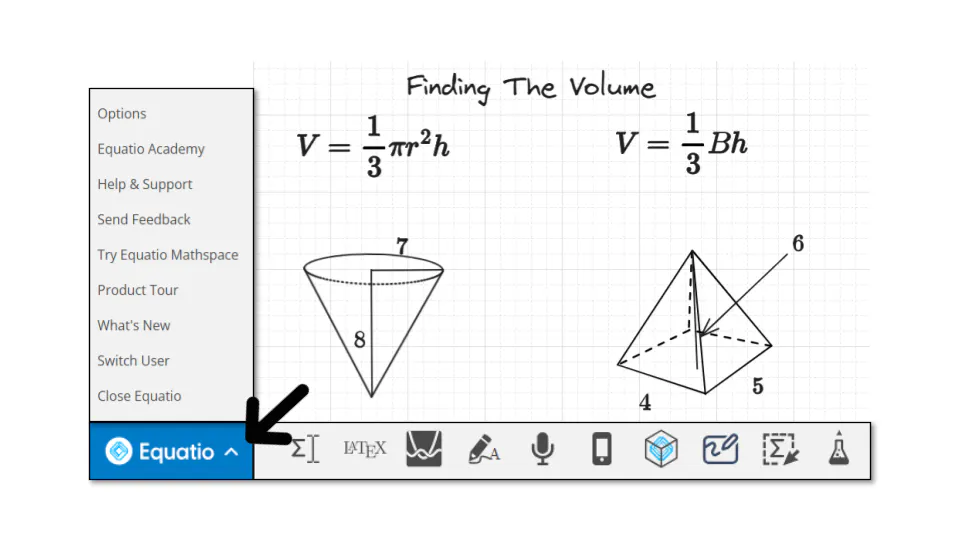
If something isn’t working as expected, help is available. Most issues can be resolved quickly with the right guidance.
Find answers quickly
Knowledge Base
Search FAQs, how-to articles, and troubleshooting guides
Common issues
If you’re getting started, you might experience:
- The toolbar not appearing
- Difficulty signing in
- Features not working as expected
These are usually resolved with simple setup checks or access permissions.
Before you contact support
Try these quick checks:
- Make sure Equatio is installed and pinned
- Sign out and back in again
- Check you’re using your school or educator account
- Confirm access with your school or IT administrator
Still need help?
If you’re still having issues, our team is here to help.